
Templates / Worship
Sermon video
You will have: the whole sermon as its own video, with captions, a thumbnail with the preacher’s photo, and the words to post it.
- 6 steps
- About 2 hours the first time, under an hour after that
- Free
- Checked
You will need: the church’s YouTube, Facebook or Vimeo account, a computer for two of the steps, a photo of the preacher, and Claude or ChatGPT.
Every template comes with the steps to finish it with your AI.
Step 1 of 6: Save the service and its captions
Your part
Make a folder for this Sunday, worship/sermon-videos/ and the date. Save the full service video and its automatic captions file. Keep the full video outside that folder; it is large. No captions a day later? Find the sermon by ear, and use the second prompt in step 4.
Claude’s part
Gives you the clicks for wherever your service is posted, and says what to do if there are no captions yet.
The prompt
Our Sunday service was livestreamed on [YouTube, Facebook or Vimeo], and I can sign in to the church’s account there. I need two files on my [Mac or Windows] computer: the full service video, and its automatic captions as an .srt file with a time on every line. Give me the exact clicks for each, one numbered step at a time. If that site gives no captions file, or there are none yet, tell me what to do instead. Do not ask me for any password.
Asks for your email the first timeYou are done when
You have the full service video, and a captions file ending in .srt in this Sunday’s folder.
How Epiphany did it
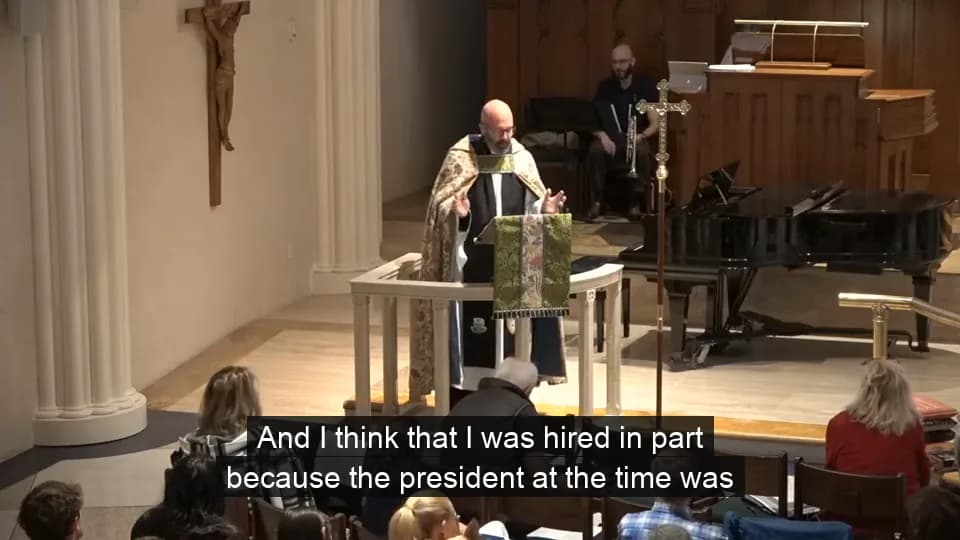
The service was a public YouTube livestream, two hours and six minutes long. YouTube’s automatic captions had a time on every word. YouTube can take a day or more to make them, and one later Sunday at the same church still had none six days on.
Step 2 of 6: Find the sermon
Your part
Give Claude the captions file and the worksheet. Then check its answer: play ten seconds at the start and at the end it gives, and listen for the first and last words.
Claude’s part
Reads the whole service, finds where the sermon begins and ends, who preached and on which readings, and suggests titles in the sermon’s own words. It says how it knows each one.
The prompt
I am attaching two files: the automatic captions from our Sunday service (an .srt file, timed from the start of the video) and a worksheet called sermon-video-worksheet.md. Find the sermon in the captions and give me: 1. The time the sermon starts, at the preacher’s first words. Count “Please be seated” or an opening prayer as part of the sermon. 2. The first sentence. 3. The time it ends, just after the last Amen and before the Creed, a hymn or the announcements. 4. The last sentence. 5. Who preached, and the exact words in the captions that tell you. If nothing names the preacher, say so. Do not guess. 6. The readings, and the words that tell you. 7. Three short titles, two to five words, each taken from the sermon’s own words, with the line it came from. Automatic captions get names, places and Bible books wrong, so mark each one you corrected as needing a check. Then fill in the worksheet and hand it back to me as a file.
Have the preacher’s text? Add this
I am also attaching the text the preacher preached from. Use it to confirm the first and last sentences and to spell every name right. Tell me anywhere the captions and the text differ in a way that changes the meaning.
You are done when
The worksheet has the start and end, the first and last words, the preacher, the readings and a title. You have heard the first and last words yourself.
How Epiphany did it
Claude found the sermon 23 minutes and 45 seconds into the service, starting with “Please be seated”, and ending at the Amen nearly 16 minutes later, before the Creed. The captions spelled the guest preacher’s name “Dashmet”. The rector’s introduction earlier in the service, and the seminary’s own staff page, gave the right spelling.
Step 3 of 6: Cut the sermon out
Your part
Cut the full service a few seconds before the first words and a few seconds after the Amen, and save it as sermon in this Sunday’s folder. Then play your cut from the start and write on the worksheet when the first words begin.
Claude’s part
Gives you the clicks for your computer, with the two times to cut at.
The prompt
Using the worksheet I am attaching, give me the exact steps to cut the sermon out of our full service video on my [Mac, with QuickTime Player, or Windows computer, with Clipchamp]. Start the cut 3 seconds before the sermon starts and end it 3 seconds after it ends, and tell me those two times. Number each click. Tell me how to save it as a new file called sermon, without changing the full service video.
Faster with Church Labs: tell Claude “Make a video of Sunday’s sermon”.
You are done when
A video of the sermon alone. It starts before the first words and ends after the Amen, and the worksheet says when the first words begin in it.
How Epiphany did it
The cut kept “Please be seated” and ended on the Amen, before the camera turned to the altar. Epiphany’s video was made with the Church Labs skill, which also cuts, so no one opened an editor.
Step 4 of 6: Make the captions
Your part
Give Claude the captions file and the worksheet. Read the new captions once, looking only at names.
Claude’s part
Keeps only the sermon’s captions, moves their times to match your cut, and fixes names, places and Bible books. It lists each fix.
The prompt
I am attaching our service’s automatic captions (an .srt file, timed from the start of the full service) and our filled-in worksheet. I cut the sermon out as its own video. Make a captions file for that video: 1. Keep only the captions from the sermon’s start to its end, as the worksheet gives them. 2. Move every time earlier, so the first words appear at the time the worksheet gives for the first words in the cut video. Work the times out exactly, not by estimate, and check that no caption overlaps the next. 3. Correct names, places, Bible books and plain caption mistakes, such as a misheard word or a broken number, and list each change. Do not reword anything the preacher said. 4. Keep each caption to two short lines. Hand it back as a file named sermon.en.srt.
Captions made from the cut sermon? Use this one
I uploaded our cut sermon to YouTube and saved its automatic captions, which I am attaching with our worksheet. Correct names, places and Bible books, using the worksheet, and list each change. Change nothing else, and keep every time as it is. Hand it back as a file named sermon.en.srt.
You are done when
A file called sermon.en.srt in this Sunday’s folder. Its first caption appears with the first words of your cut.
How Epiphany did it
Epiphany used YouTube’s automatic captions with the names corrected. They stayed marked as a draft until the parish read them.
Step 5 of 6: Make the thumbnail
Your part
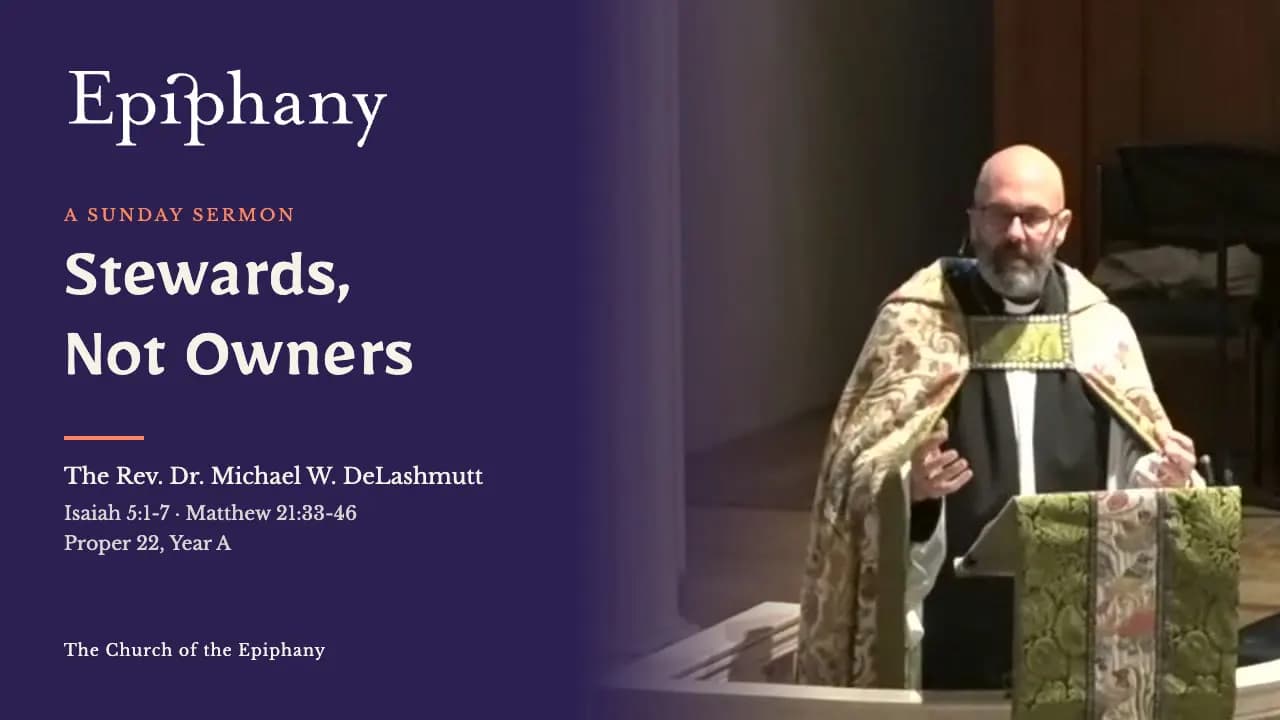
Open the slide in PowerPoint, Keynote or Google Slides. Put in the preacher’s photo, change the colors to your church’s, and save the slide as a picture called thumbnail.
Claude’s part
Puts the worksheet’s words into the slide and checks the title fits in its space.
The prompt
I am attaching our thumbnail slide (thumbnail.pptx) and our filled-in worksheet. Put the worksheet’s words into the slide: the church’s name, the sermon title, the preacher’s name with title (for example, The Rev. Jane Smith), and the reading the sermon preaches on, with the Sunday. Replace only the words in square brackets, and keep every font, size, color and position. If the title would need more than three lines, suggest a shorter one from the worksheet. Hand the slide back as a file named thumbnail.pptx. I will put the photo in myself.
Asks for your email the first timeYou are done when
A picture with the title, the preacher’s name and photo, and the reading. It still reads on a phone at the size of a fingernail.
How Epiphany did it
The guest preacher had no photo on the parish’s website, so the photo is a still from the recording. The purple, the orange and both typefaces come from the church’s own website.
Step 6 of 6: Post it with the captions
Your part
Ask the preacher before you post. Upload the sermon, add the thumbnail and the captions file, and paste in the words. Then watch the first minute on your phone with captions on.
Claude’s part
Writes the title, the description and a short post for Facebook and your weekly email, and gives you the clicks for the thumbnail and captions.
The prompt
Using our filled-in worksheet and the sermon’s captions, which I am attaching, write: 1. A video title: the sermon title, then the preacher’s name, under 70 characters. 2. A description: one or two sentences on what the sermon says, in the preacher’s own words where you can; the readings; and one line inviting people to worship with us at [service times and address]. 3. A post of three sentences for Facebook and our weekly email, ending with [link to the video]. Use plain words, and add nothing the preacher did not say. Then tell me how to add a custom thumbnail and a captions file on [YouTube or Facebook], one numbered click at a time.
You are done when
The sermon is posted with its thumbnail. On a phone, the captions keep time with the voice. Delete the full service video from your computer.
How Epiphany did it
Epiphany’s sermon went out as a link that opens on the thumbnail. The description named the readings and said which details came from the recording and which the parish had confirmed.
When you finish
Next in Worship: Bulletin. Bring what you made to the open house and show it.
The weekly open house
Free and live. Next: Monday, November 30 at noon Eastern, on building great vestry reports with Claude. Bring what you are working on.